Norse Subscriptions help
Add-ons: the shelf and “Add to next delivery”
Let subscribers add a product to their next delivery from the portal or the product page, instead of placing a second order.
Subscribers often want one more thing in their next box. The shelf shows a few products in the portal, under their own, and “Add to next delivery” puts a button on your product page. Either way the product comes with a delivery they already have, with no second order and no extra shipping. You set this up under Customer experience > Upsells. Both are part of Growth.
Before you start
Under Customer experience > Customer portal, press Change in the Products and address row and turn on One-time product in the next delivery, A product on its own rhythm, or both. The shelf needs at least one of them.
Set up the shelf
- Open Customer experience > Upsells.
- Turn on Show the shelf.
- Leave Heading empty to use “Add to your next delivery”, or write your own.
- Set Products shown at once, from 3 to 6.
- Under Which products, choose By you or By rules. The rules are Most bought together, From the same collection and Featured products, a collection you choose. They fill the shelf in that order.
- Under Your own products, to fill up, press Add a product. You can add up to 12, in the order you want them.
- If you want, set a Shelf discount, percent.
- Check the preview, and press Save changes.
In the preview, Moment shows the shelf Before adding or Just added.
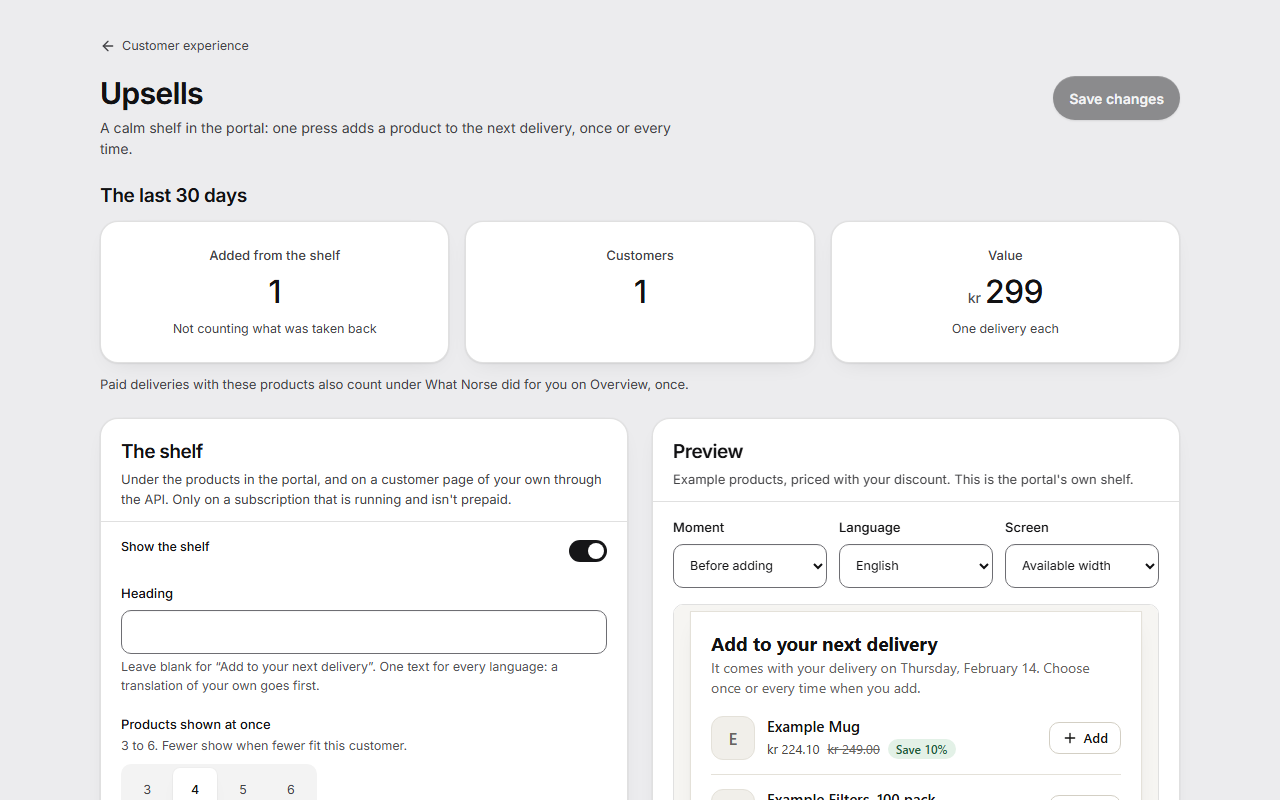
What the customer sees
Under their products in the portal, “Add to your next delivery” shows small cards with a picture, the name, the price and “Add”. Nothing is added by that press. It opens what the product costs and when it is charged, with a button that says the customer pays: “Add and pay $9.00 once”, or “Add and pay $9.00 per delivery” where you offer every delivery. A product they have just added is marked as added, with “Undo”.
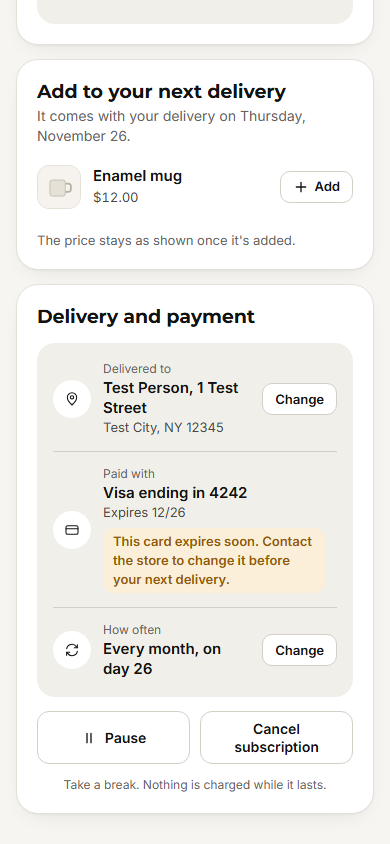
Add the button to your product page
- Under Customer experience > Customer portal, find the row Add from the product page and turn on Offer it on the product page. It needs One-time product in the next delivery.
- Press Save changes.
- In your theme editor, add the block Add to next delivery to your product page, and save.
A signed-in subscriber then sees a button such as “Add and pay $9.00 with your next delivery, 12 December”, and “Charged once, with that delivery.” After the press, it says when the product comes and what it costs, with “Undo”. A visitor who isn't signed in sees nothing from the block.
Good to know
- The shelf never shows what the customer already has, anything sold out or unpublished, a gift card, a product sold only as a subscription, or a product not sold where the delivery goes.
- Where the customer's plan already gives the product a subscription discount, they see that price. A shelf discount goes on the regular price. The lower of the two is used, never both.
- The price is read when the customer presses. If it changed since they saw it, nothing is added and they see the new price. Once added, the price stays.
- The shelf isn't shown on a prepaid or paused subscription, while a payment is under way, or when the customer came through an email link.
- “Add to next delivery” needs automatic charging on, and the portal or your own customer page, so the customer can take the product out again.
- The last 30 days at the top counts what was added from the shelf, by how many customers, and what it comes to.