Norse Subscriptions help
Create a plan
Set how often customers get a product, what they pay, and which products the plan covers, then publish it.
A plan says how often customers get a product, what they pay and which products it covers. Each delivery frequency in the plan becomes a choice on the product page. You make plans under Plans.
Create a plan
- Open Plans and press New plan. With no plans yet, you can press Use the template instead. It fills in "Subscribe and save 10%": three rhythms and 10% off.
- Under Name and status, write the Plan name. Customers see it only when a product has more than one plan.
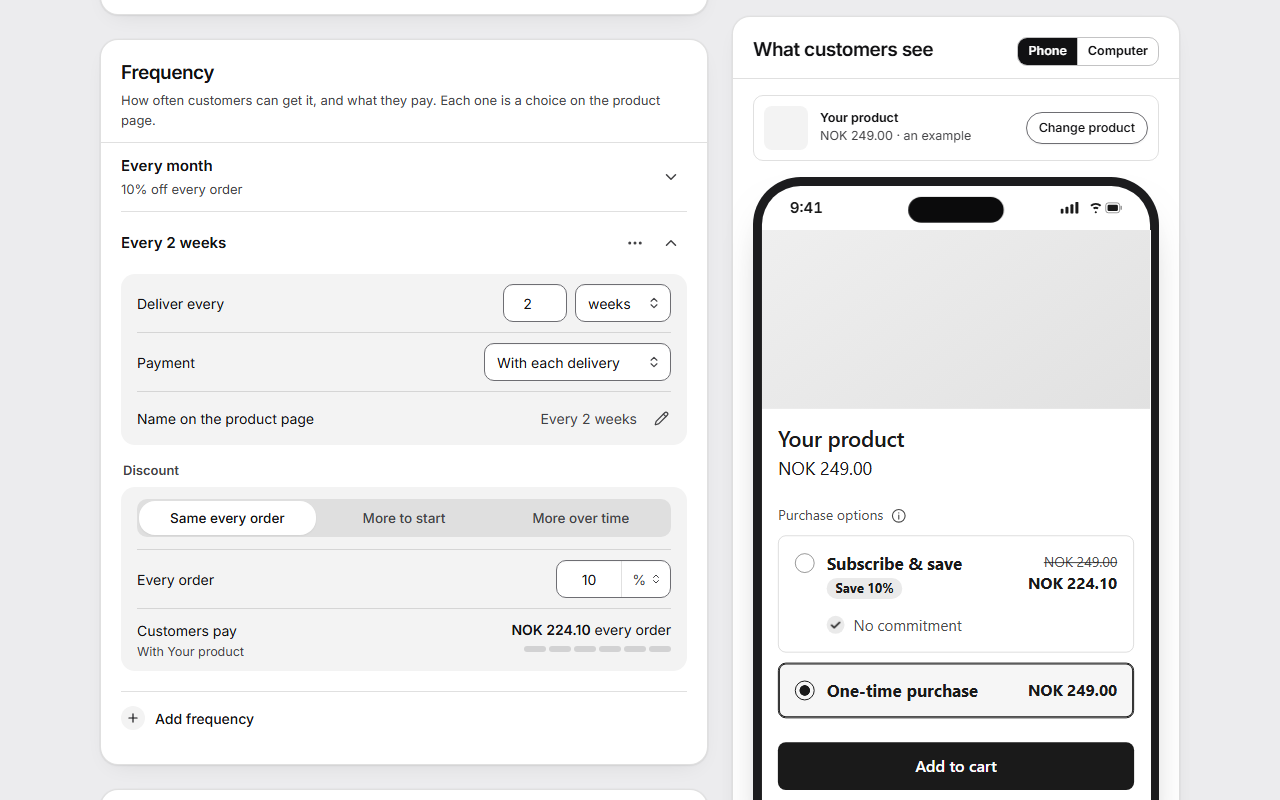
- Under Frequency, press a line to open it. Set Deliver every and the unit.
- Leave Payment on With each delivery, or see Prepaid plans.
- To offer another rhythm, press Add frequency and choose Every 2 weeks, Every month, Every 2 months, Every 3 months or Custom…. A new one starts with the first one's discount.
- Under Discount, choose how the discount goes, and set the amount (see below).
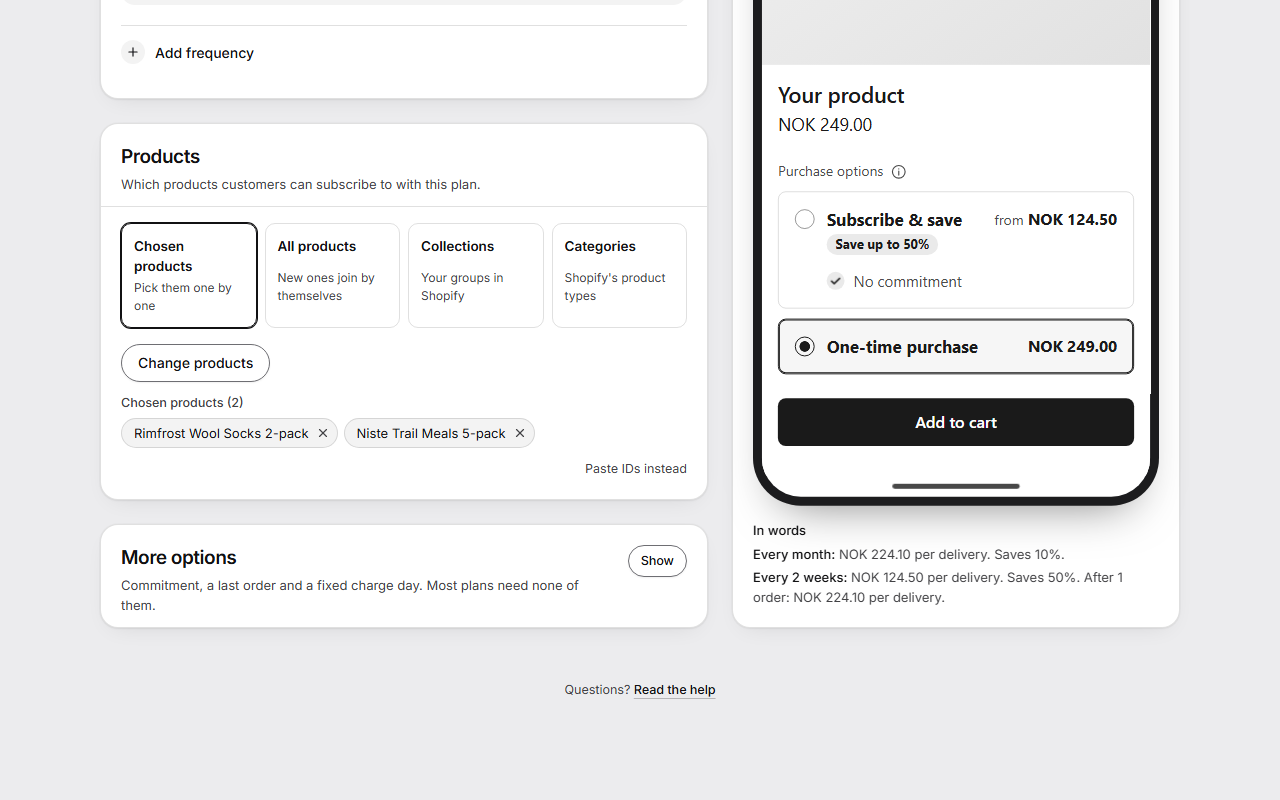
- Under Products, choose Chosen products, All products, Collections or Categories.
- For chosen products or collections, press Choose products or Choose collections and pick them in Shopify's picker. Each one chosen has a cross to take it out.
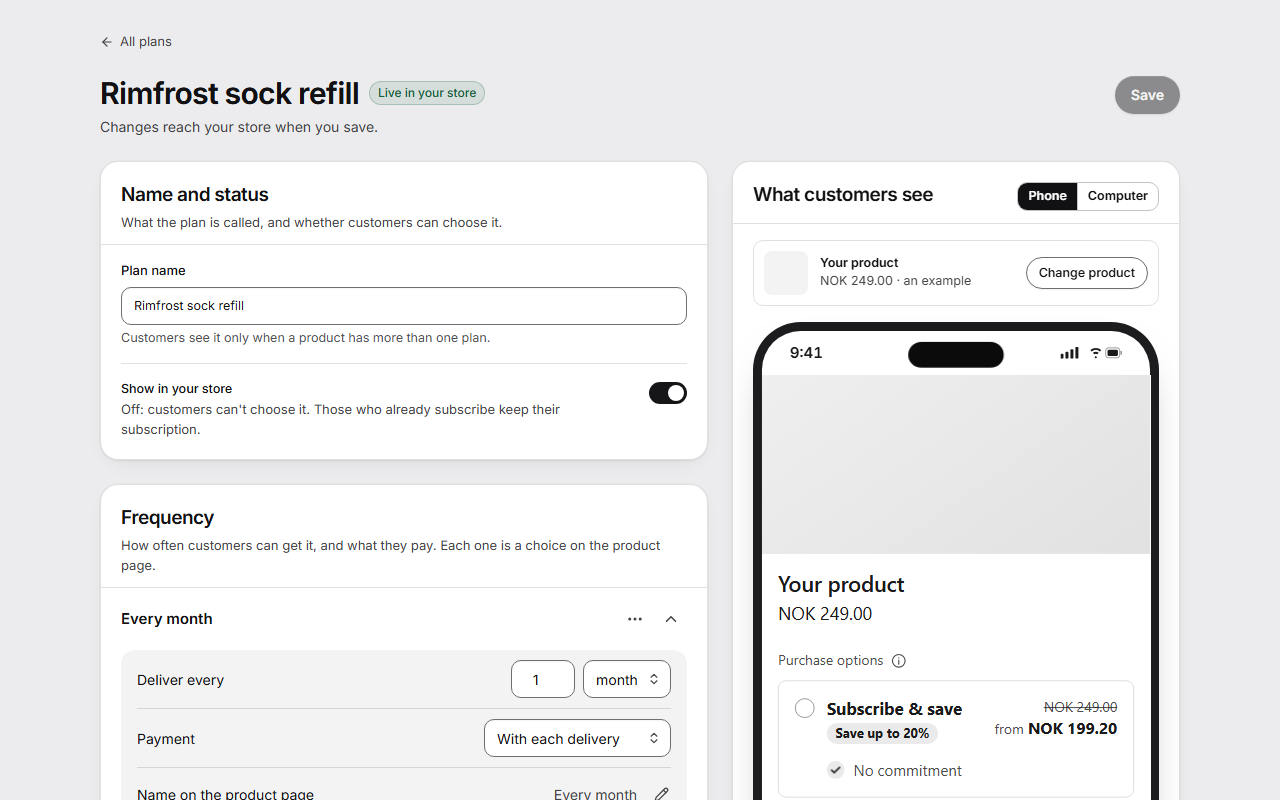
- Under Name and status, turn on Show in your store.
- Press Create and publish.
A new plan starts with Show in your store off. Then the button says Create draft, and the plan is saved without reaching your store.
Set the discount
Each frequency has its own discount. Choose one of three:
- Same every order: the same discount every time.
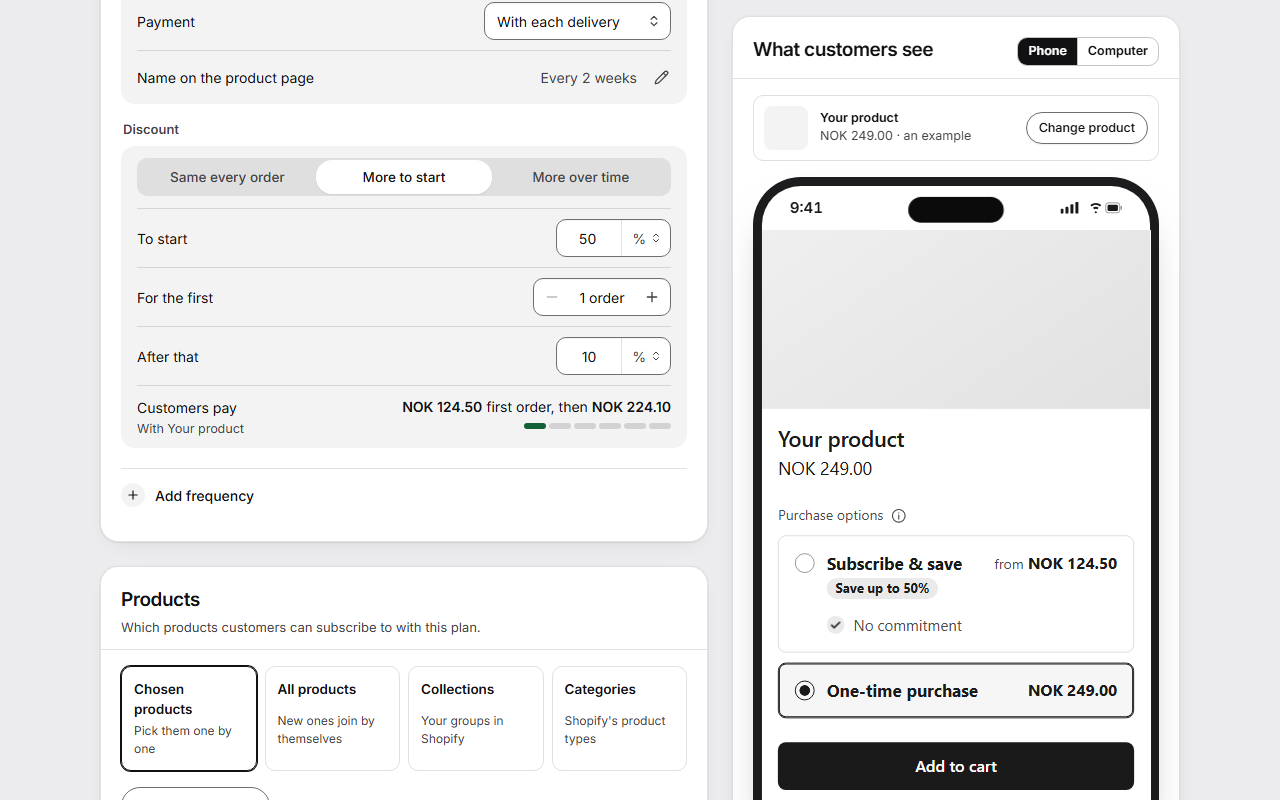
- More to start: a bigger discount on the first orders, such as 50% off the first order and 10% after.
- More over time: a discount that grows, such as 10% off the first 3 orders and 15% from order 4.
Next to each amount, choose %, an amount off, or a fixed price for each item. Customers pay shows what the first orders cost with the product in the preview.
To give every frequency the same discount, open the frequency, press its menu (the three dots) and choose Use this discount on all.
See what customers see
Beside the form, What customers see shows the plan on a product page. Phone and Computer change the screen, and Change product shows it on one of your own products. In words, below the preview, says each frequency's price in a sentence.
Change a plan
Open the plan under Plans, make your changes and press Save. Discard throws the changes away. Changes reach your store when you save.
At the bottom of the plan's page:
- Send to Shopify again, for when a product page doesn't show the plan.
- Take this plan off your store, with Take off. Customers can no longer choose it, and you can put it back later.
- Delete this plan, with Delete. Those who already subscribe keep their subscription.
On the list of plans
Each plan says where it stands: Live in your store, Not published, Edits not published, Draft or Off your store. Each row has one action: Hide from store, Publish or Put back.
More options
More options is closed until you press Show. Most plans need none of it.
- Customers stay for at least a number of orders before they can cancel. Say the same in your store's cancellation policy, and check the rules for your market first.
- The subscription ends after a number of orders.
- Charge on: The day it was ordered, A fixed day of the week or A fixed day of the month.
- Name in your Shopify admin: only you see it.
Further down the plan's page are Checkout links (see Checkout links and QR codes) and Starter kits and sold-out products. Press Show on the second to swap a starter kit for a refill after a number of deliveries, or to choose what happens when a product is sold out for this plan.
Good to know
- Each frequency's Name on the product page comes from its rhythm, such as "Every 2 weeks". The pencil beside it lets you write your own.
- Shopify allows one step in a discount: one price for the first orders, then one after. With More to start, the first orders must get the bigger discount. If they don't, the page says so and doesn't save.
- The app counts deliveries itself, so a skip or a change of rhythm doesn't move a discount step.
- A plan for all products, collections or categories follows your catalog: a product added to a collection gets the plan, and one that leaves loses it. Gift cards never get a plan this way. To group by tag or brand, make a smart collection in Shopify.
- Turning Show in your store off, or taking the plan off your store, stops new customers choosing it. Those who already subscribe keep their subscription.
- Publishing a plan doesn't add the choices to your theme. See Show subscriptions on product pages.
- A store that sells in several languages can give the plan's names in each one under Other languages. See Languages and your own words.