Norse Subscriptions help
Change many subscriptions at once
Skip, move, pause, change the rhythm, swap a product or cancel on many subscriptions in one go.
This article helps you make one change to many subscriptions at once, for example when a product is out for a month or a delivery day moves for everyone. You do it from the list under Subscriptions, and you see what will happen before anything changes. Changing many at once is in Scale.
Change the selected subscriptions
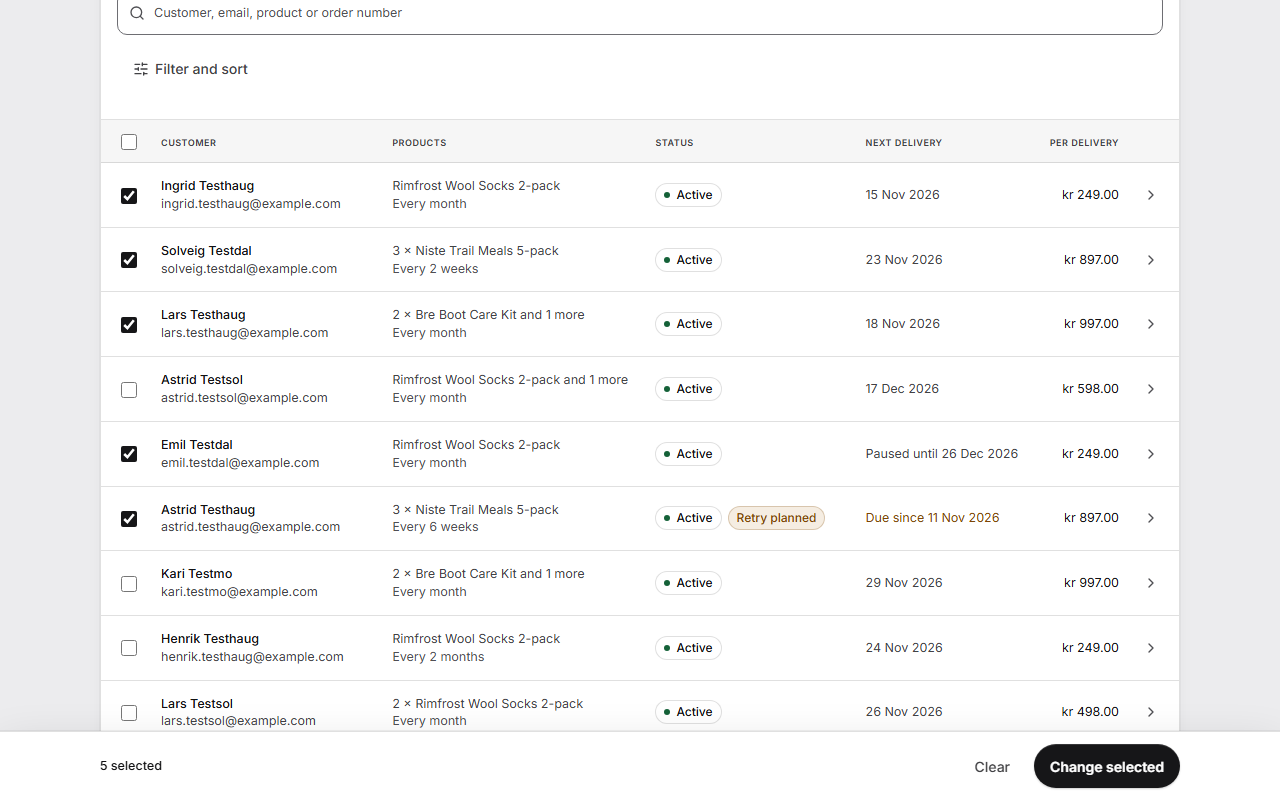
- Open Subscriptions. To find the ones you want, use Filter and sort, for example Product.
- Tick the rows. The box at the top of the list ticks the whole page.
- To include everyone who matches the filter, press Select all followed by the number, up to 200.
- Press Change selected in the bar at the bottom.
- Under What to do, choose one change: Pause for a while, Pause until resumed, Skip next delivery, Move next delivery, Change rhythm, Swap a product or Cancel.
- Fill in what the change needs: How long, the New date, the New rhythm, or the Product to replace and the New product.
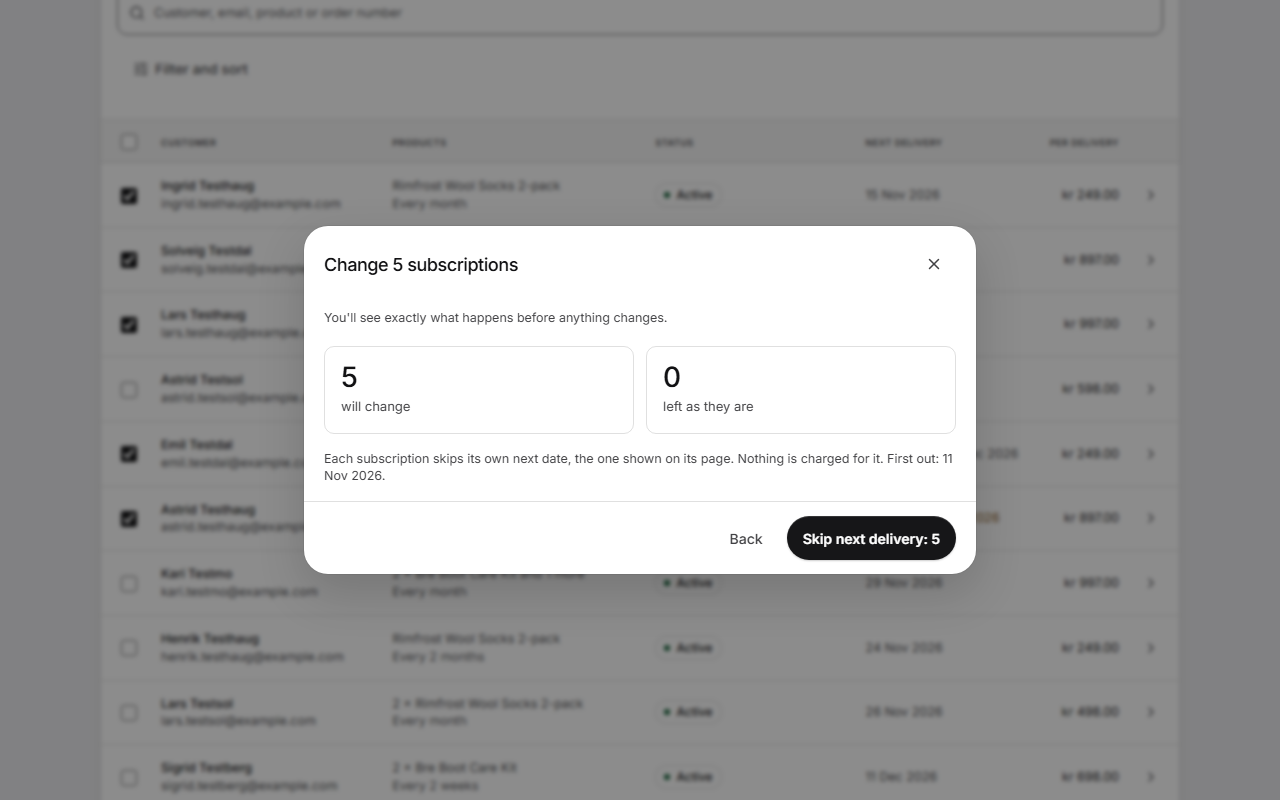
- Press See what happens. The window shows how many will change and how many are left as they are. Why some are left out says why.
- Press the button that names the change and the number, such as Skip next delivery: 5, or Back to change your choice.
The changes run one at a time, and the window counts them as they go. When it is done, it says how many changed, how many didn't, and why.
What each change does
- Pause for a while: 1, 2, 3, 6 or 12 months. After that, deliveries start again by themselves.
- Pause until resumed: the subscriptions stay paused until someone resumes them.
- Skip next delivery: each subscription skips its own next date, the one on its page. Nothing is charged for it.
- Move next delivery: only the next delivery moves, and it is charged on the new date. The ones after it stay on their dates.
- Change rhythm: moved dates and skips on the old rhythm fall away. Prices stay the same. Tell your customers, because they see the new dates in their portal.
- Swap a product: each subscription keeps its own discount on the new product's price. The new price can differ, so tell your customers before their next charge.
- Cancel: Shopify can't start a cancelled subscription again. The customer would have to buy again.
Good to know
- On Free, Starter and Growth you can still select rows, but Change selected is greyed out with In Scale beside it, which leads to the plans.
- At most 200 subscriptions go in one change. Narrow the filter and run it again for the rest.
- Some subscriptions can't take a change right now, for example one waiting for a check. The window says which and why, and leaves them as they are.
- If the run stops, the window says how many are left. What is listed as done is done, and nothing runs twice.
- The limits you set for customers under Customer portal, such as skips in a row, don't apply to changes you make here.